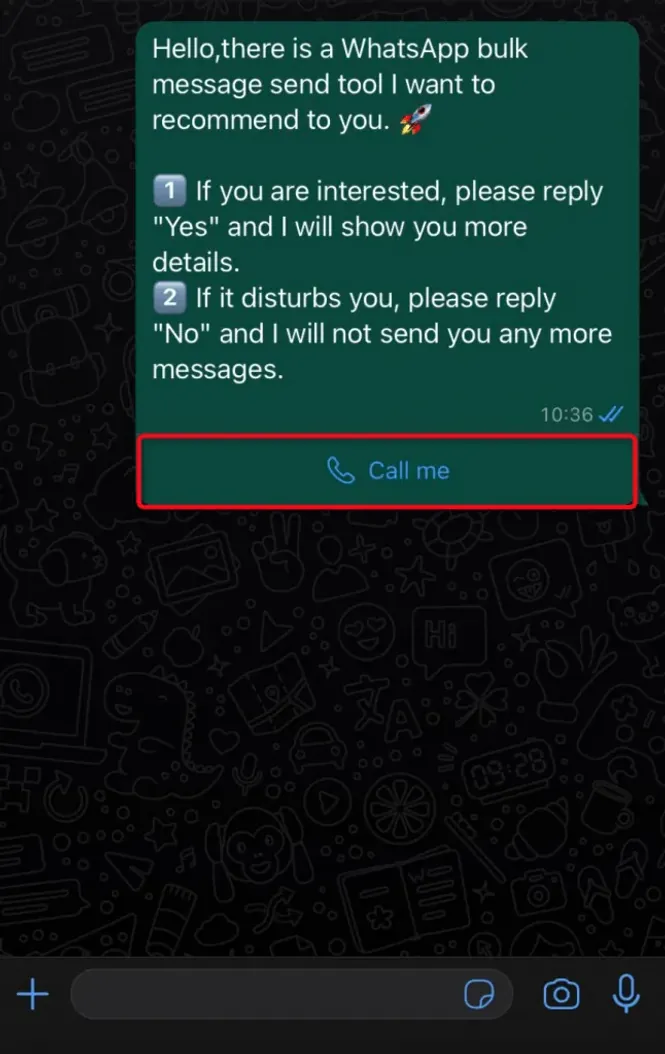
How To Using Buttons In WhatsApp
1. Open the plugin 'Easy Sender' and click 'Open'
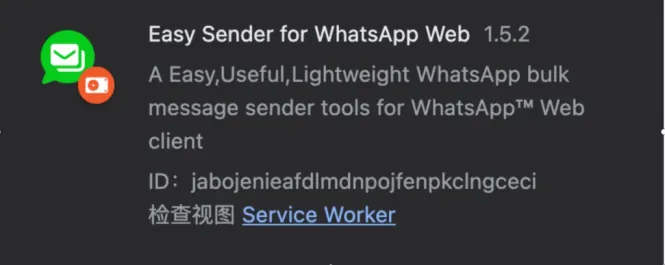
2. After installing, open the plugin's messaging page.
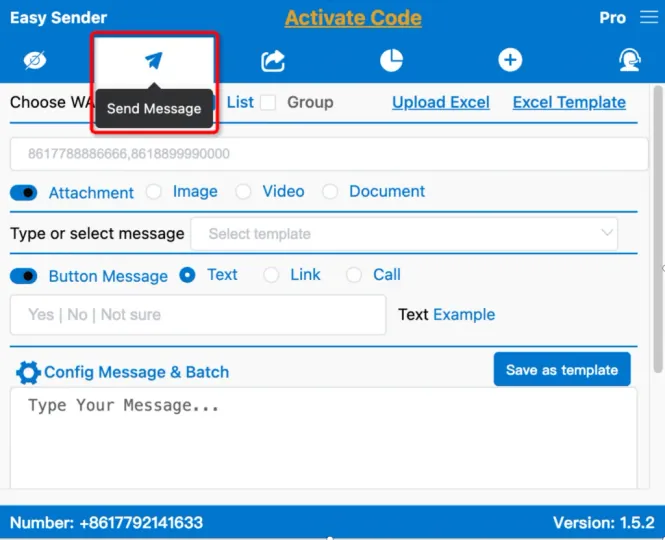
3. Click to open the Button Message function. On the right-hand side, there are options to choose from: Text, Link, Call.
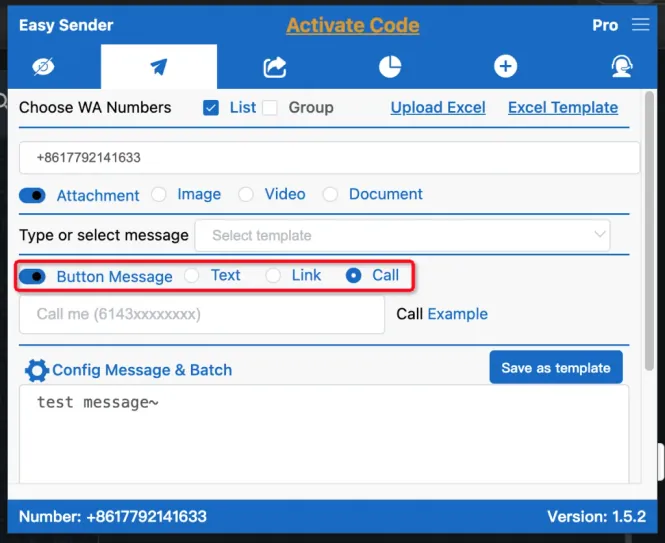
3.1 Choose "Text," click on "Text Example" on the right, and the example will automatically be filled in the left input box.
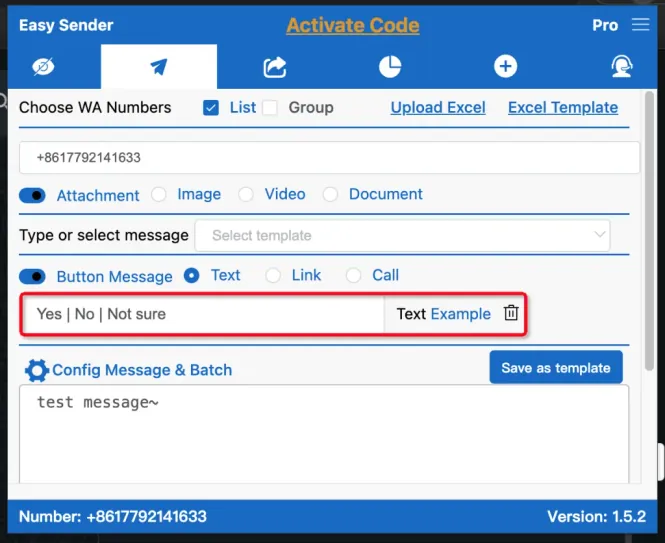
3.1.1 Once you have selected the WA user who needs to receive the message, you can click the "send message" button. After a moment, the message you sent should appear as follows.
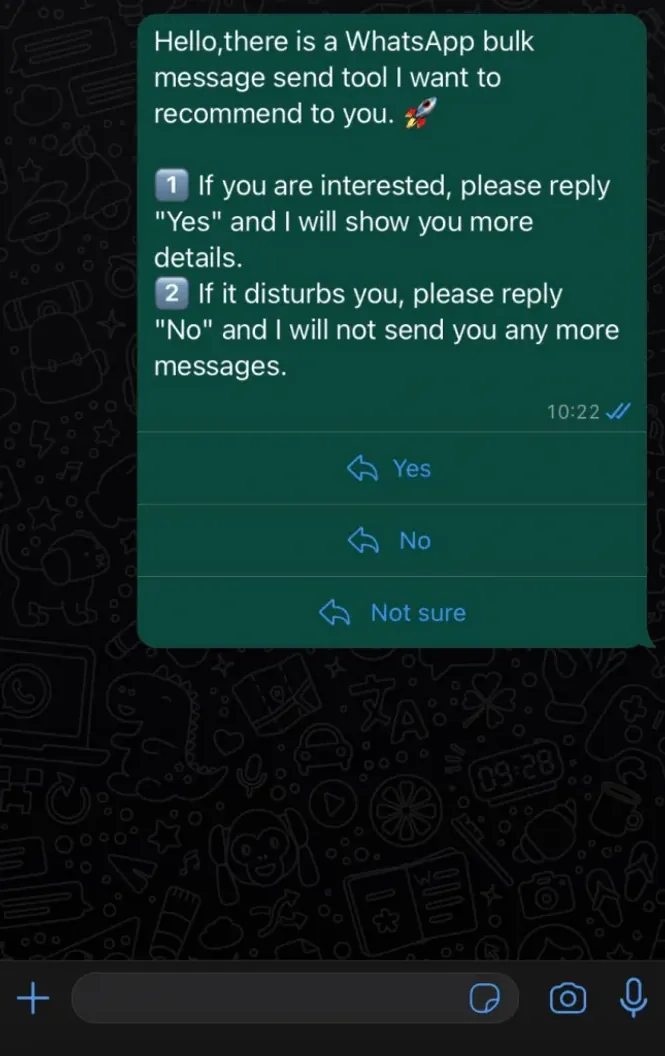
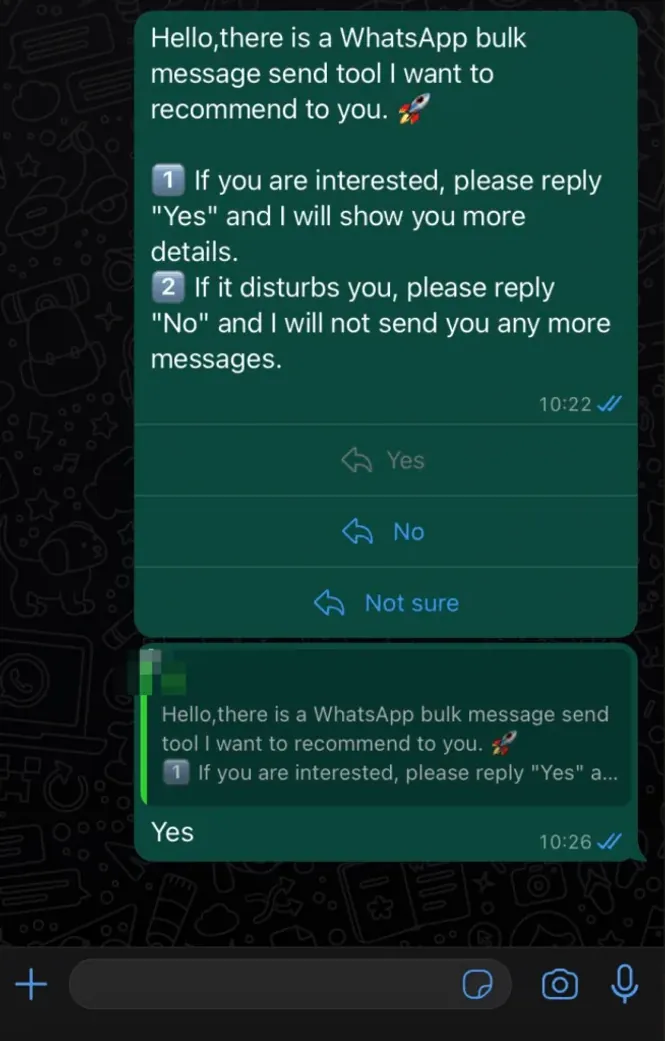
3.1.2 When the user receives the Button Message, they can reply by clicking on the corresponding button, for example.
3.2 When you select "Link," you can also click on the "Link Example" button on the right, for example.
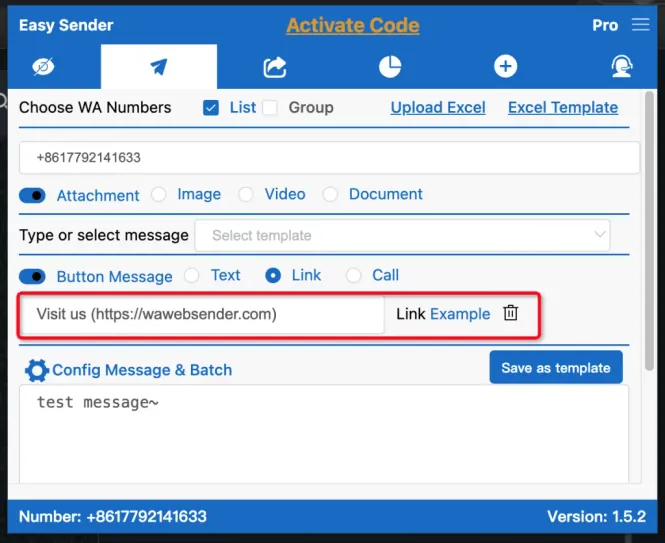
3.2.1 The name and website can both be customized. When the user receives your message, they can access the link by clicking on the following button.
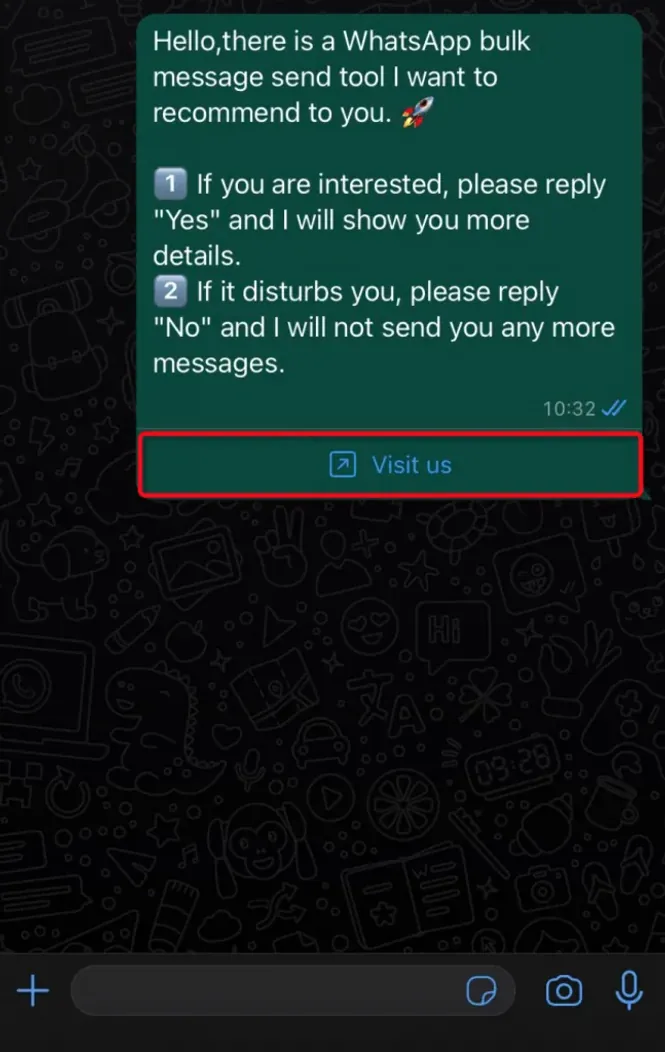
3.3 When you select "Call," you can click on the "Call Example" button.
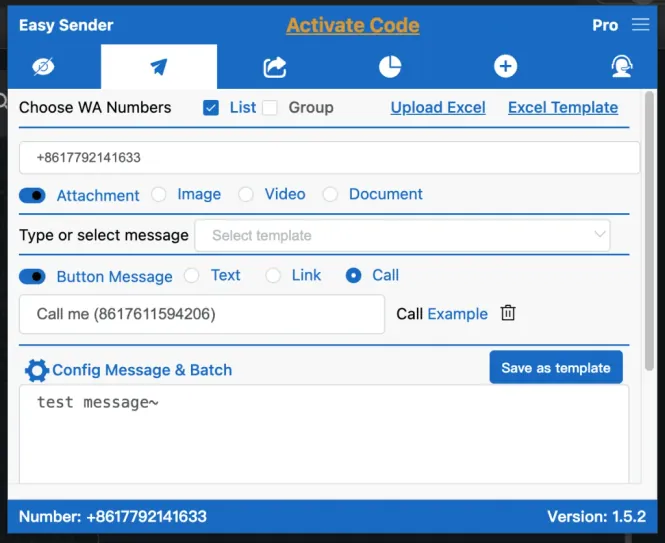
3.3.1 After receiving the message, the user can make a call by clicking on the button below.