User Guide|How to use WA Group Sender
WA Group Sender is a free, powerful and easy-to-use online Web WhatsApp extension.
Features:
Send messages to groups.
Send messages when group members join/leave.
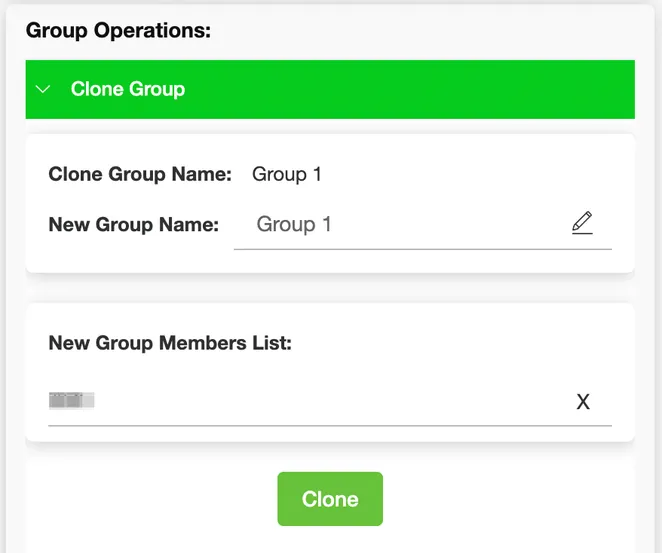
Clone group, ect...
How to open WA Group Sender Extension?
How to use Send Messages?
How to use Group Bots?
How to use Group Tools?
How to open WA Group Sender Extension?

#1 Install and pin WA Group Sender's icon in your browser
- You will notice an icon at the top right of your browser.
- When you click this icon, a menu will show a list of all the installed extensions.
- You need to click the icon next to WA Group Sender.
- Once done, you will see the icon.
#2 Please log in on WhatsApp Web first

- Click the icon and link to WhatsApp Web.
- Open WhatsApp on your phone.
- Tap Menu on Android /Settings on iPhone and click "Linked Devices".
- Point your phone to this screen to capture the code.
#3 Click the icon at the top right of your browser

When you log into WhatsApp Web and click the icon at the top right of your browser, you will see the popup window. Now you can experience how efficient Sender is.
How to use Send Messages?
#1 Enter the message to be sent
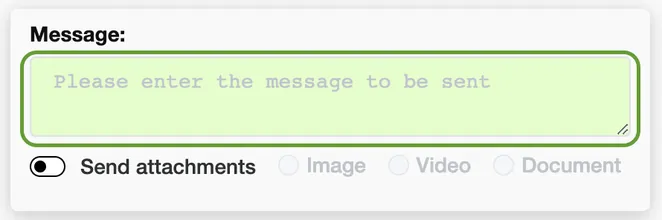
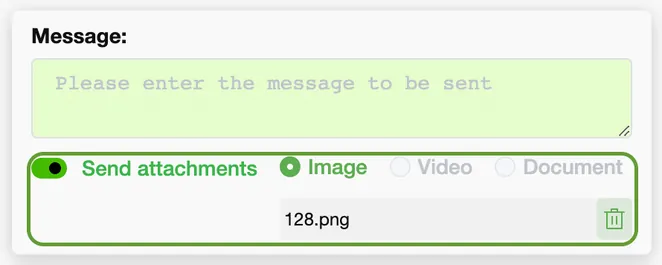
#2 Select the attachment you want to send(Skip this step if you don't need to send attachment)
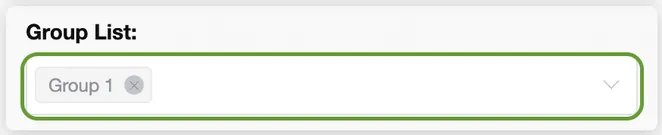
#3 Select the group you want to message, you can select multiple groups
#4 Select the time interval for sending messages to each group

#5 Click the 'Start Send' and keep WhatsApp Web open in your browser

You're done! All messages will be sent one by one.
How to use Group Bots?
#1 Click the 'Create New Group Action'
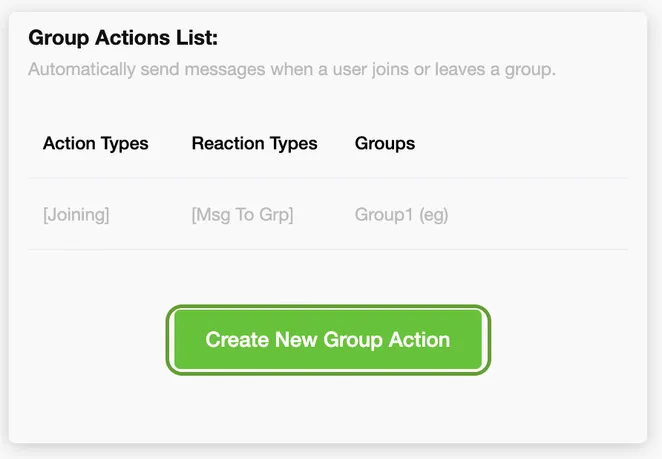
#2 Select the group you want to perform the action on

#2 Choose when to take action
- Group Joining : When a member joins the group
- Group Leaving : When a member leaves the group

#3 Select an action to perform
- Send message to a group : When the above Action Type is triggered, a message will be sent to the group
- Send message to a contact : When the above Action Type is triggered, a message will be sent to the contact

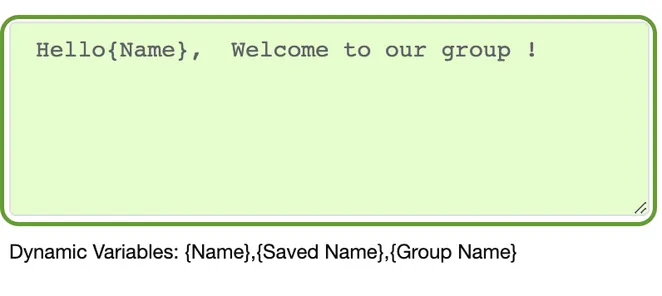
#4 Enter the message to be sent
- {Name} : Contact default name
- {Saved Name} : Contact name only as saved on your phone
- {Group Name} : Group name
How to use Group Tools?
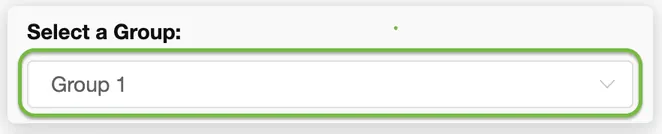
#1 Select a group
#2 Click the drop-down option of the function you want to use
- Clone Group : Clone a copy of group members into a new group
- Delete Group Members : Bulk delete group members
- Change Admin Setting : Modify group administrator status