
How to Add WhatsApp Button to Website for Free (2026)
Key Takeaways
- Adding a WhatsApp button lets visitors reach you instantly, which can improve customer satisfaction, reduce bounce rates, and increase engagement and sales.
- You can add a WhatsApp button for free by using WAPlus WhatsApp Chat Button Generator, customizing it, then copying and pasting the HTML code into your site.
If you want to connect with your website visitors quickly and effectively, adding WhatsApp button to website is one of the best ways to do it. This simple WhatsApp widget allows visitors to reach you instantly, making it easier for them to ask questions or get support.
In this guide, we'll walk you through the easy steps to add WhatsApp button to website for free, helping you engage customers and build stronger relationships.
Why add a WhatsApp button to your website?
Adding a WhatsApp button gives visitors a fast, familiar way to contact you without friction.
It improves real-time communication, helps visitors act faster, and can increase engagement on your site.
Instant communication
When visitors have questions or need assistance, waiting for a response through email or forms can feel like an eternity.
With WhatsApp button, they can message you directly and get a response almost immediately.
This instant communication can greatly improve customer satisfaction and help reduce bounce rates on your site.
Also, if you are replying in a public place like a coffee shop, be mindful of the leakage of the WhatsApp conversation privacy. Installing Privacy Extension for WhatsApp Web with one click can be a good way to protect it.
Super easy for visitors
Most people are already familiar with WhatsApp. By adding WhatsApp widget, you make it easier for visitors to reach out without needing to fill out a contact form or search for your email address.
This convenience encourages more visitors to contact you, increasing the chances of turning them into loyal customers.
Boost engagement and increase sales
When your visitors can quickly ask questions and get answers, they're more likely to make purchases or engage further with your business.
WhatsApp button serves as a gateway for higher interaction, helping you convert curious visitors into satisfied customers.
Pairing your WhatsApp button with the WA Contacts Extractor lets you instantly gather and manage leads from every chat interaction, turning high engagement into real business growth.
What You Need before Adding WhatsApp Button
Prepare these items first so you can generate the button code in minutes.
- Your WhatsApp number, including the country code.
- A welcome (pre-written) message visitors can use, for example: “Hi, how can I help you?”.
- Your preferred button appearance and placement (for example, the bottom right corner) and a color that matches your site.
- Your brand name and logo (if you want brand styling).
How to Add WhatsApp Button to Website for Free (Step-by-Step)
You can create a WhatsApp button quickly with a generator tool and then paste the provided HTML code into your site.
The steps below keep it simple and do not require you to code the widget from scratch.
Step 1: Choose WhatsApp button generator tool
There are several tools available to create WhatsApp buttons, but one of the easiest and most effective options is the free WhatsApp Chat Button Generator.
It's user-friendly and doesn't require coding by yourself, so you can get started right away.
Step 2: Create and customize your WhatsApp button
Follow this sequence to generate your button and copy the code.
- Open WhatsApp Chat Widget Generator.
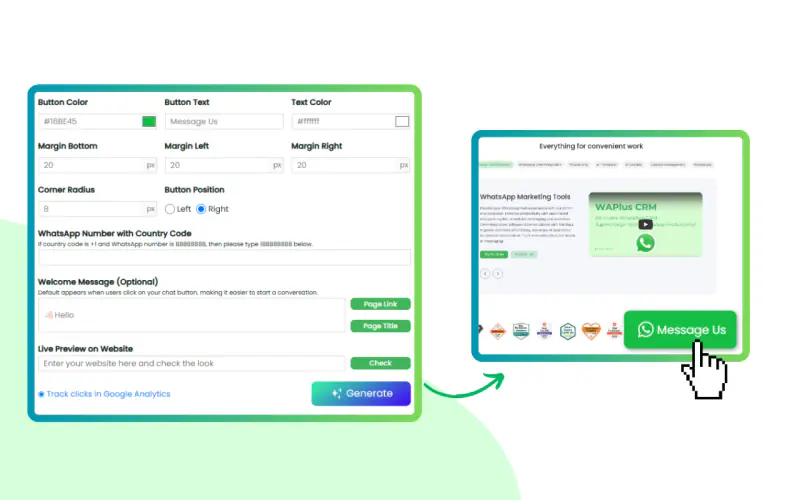
- Customize the button: enter your WhatsApp number (with country code), set a welcome message, choose appearance (color and placement such as bottom right corner), set brand name and logo.
- Preview the button on your website to make sure it looks great.
- Add a WhatsApp Widget to enrich your button if you want.
- Copy the HTML code provided.
Step 3: Add the button code to your website
After you paste the code and save, refresh your site and your WhatsApp button will be live.
Choose the instructions that match your website setup so you place the code in the right area.
For WordPress users
- Log in to your WordPress dashboard.
- Go to “Appearance” > “Widgets” or “Custom HTML”.
- Paste the code into the widget area where you want the button to appear.
For custom websites
- Access your website's HTML files through your CMS or hosting platform.
- Paste the code in the desired spot on your site.
Best Practices for Using WhatsApp Button
A WhatsApp button works best when it is visible, easy to start, and supported by fast replies.
Use these practices to maximize engagement and conversions.
Make it easy to find
WhatsApp button should be clearly visible to visitors.
Placing it in the bottom right corner is recommended, because this is where users naturally expect to find a contact option.
Use pre-set messages to speed up communication
Set up pre-written messages on your WhatsApp widget that can be sent with one click.
This minimizes effort and helps visitors quickly begin the conversation, for example: “Hi, I need help with your product details.”
Respond quickly
The real power of a WhatsApp button lies in the fast communication it enables.
Make sure your team is ready to respond quickly so you can take full advantage of the opportunity to engage with potential customers.
Example: How WhatsApp button can increase sales
Imagine you run an online store and a potential customer has a question about one of your products.
Instead of searching for contact info or leaving your site, they click the WhatsApp button and send a quick message, and you respond in real time—leading to a sale.
This immediate, personal touch can turn a browsing visitor into a paying customer.
Conclusion
Adding WhatsApp button to website is an easy and effective way to engage with visitors in real-time.
With WhatsApp Chat Button Generator, you can quickly create and install a WhatsApp widget that fits your site's design, making it easier than ever for potential customers to reach out.
This small addition can make a big difference in your customer service and sales—start today and turn casual visitors into loyal customers with just a click.
FAQ
Do I need coding skills to add a WhatsApp button?
No, this guide uses a free button generator, so you just copy the HTML snippet and paste it into your website.
How do I add the WhatsApp button to WordPress?
Log in to WordPress → go to Appearance → Widgets (or Custom HTML) → paste the code into the widget area where you want it to show.
Where should I place the button on the page?
A common best practice is the bottom-right corner, since that's where many users expect to find a contact option.